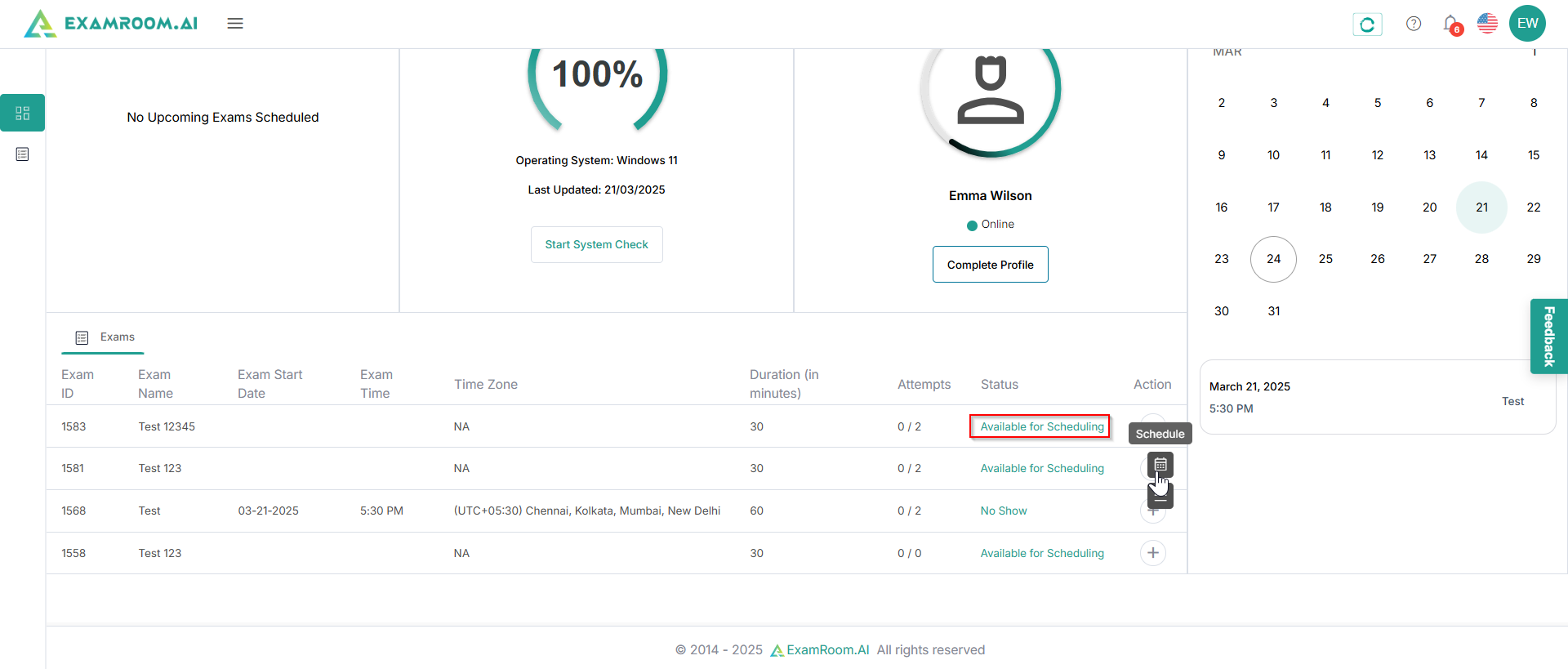
On the Candidate Dashboard, go to the Exams section. If the exam status shows AvailableforScheduling, click Schedule under Actions to proceed.
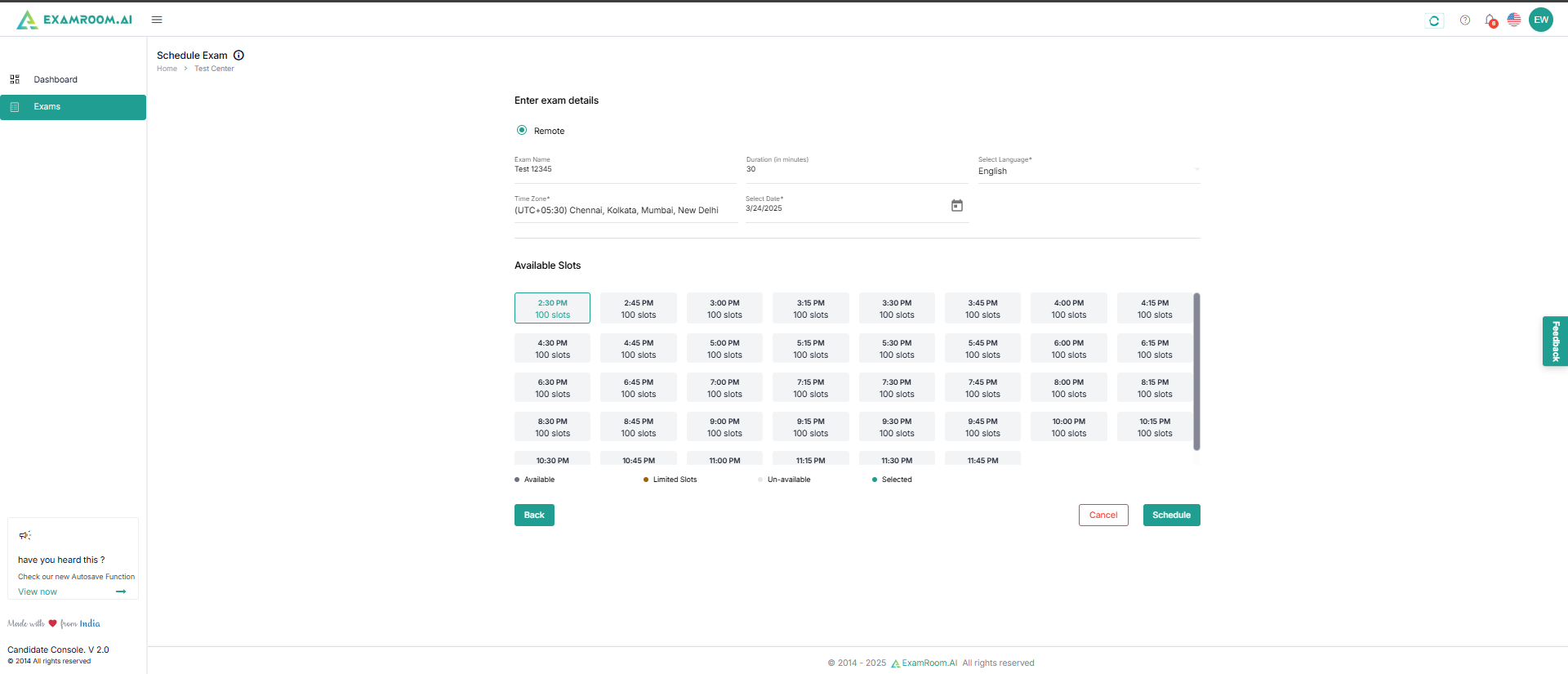
After clicking ScheduleExam, the next screen will display exam details, which are populated based on your exam sponsor setup.
Select your desired time slot and click Schedule.
If the exam does not require payment, the exam will be scheduledautomatically without payment, and a success notification will appear on the screen.
If your exam requires payment, ensure you complete the payment, if applicable. Making the payment finalizes your exam appointment. Your exam will be added to the cart so you can complete payment. See Payment. The necessity of payment depends on the exam type or the sponsor's settings.